
How to Play Fortnite on a Chromebook (2026 Setup Guide)
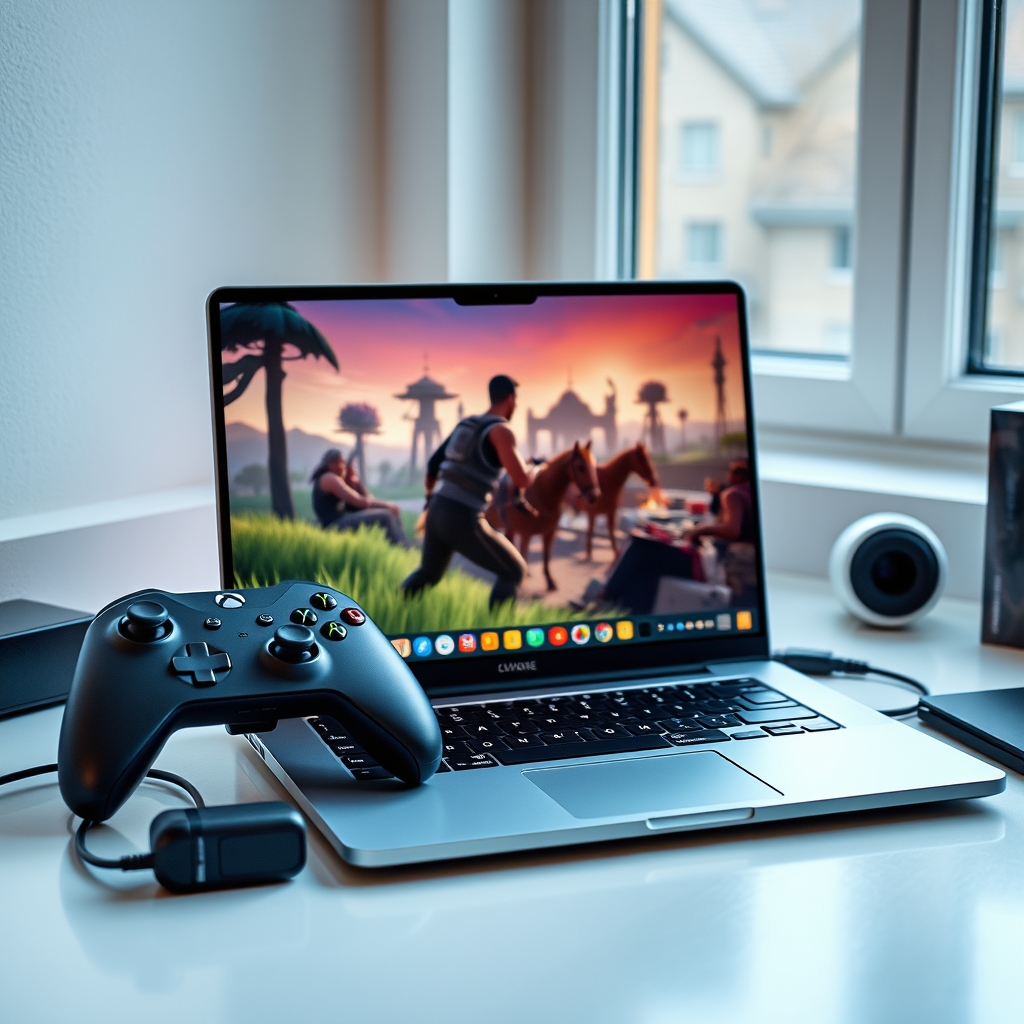
For years, ChromeOS devices were considered basic web browsing tools designed primarily for schoolwork and light productivity. Getting demanding 3D games to run on modest hardware seemed out of reach. Today, cloud gaming technology and updated Android runtime containers have changed the landscape completely.
If you are asking if can you play fortnite on a chromebook in 2026, the short answer is a resounding yes. You do not need a high-end gaming PC or a heavy laptop equipped with a dedicated graphics card to join the Battle Royale drop.
Understanding your options helps you select the best method for your specific hardware and internet speed. Here is a breakdown of every working method to get Fortnite running on ChromeOS today.
Can You Play Fortnite on a Chromebook?
The technical challenge with running Fortnite on ChromeOS comes down to operating system architecture and hardware performance. Epic Games designs Fortnite primarily for Windows, consoles, and mobile platforms. ChromeOS relies heavily on web architecture and Linux or Android virtualization containers.
When people ask can you play fortnite on a chromebook, they are usually surprised to learn that native installation is not always necessary. Cloud gaming services render the game on high-powered remote servers and stream the video feed directly to your screen with minimal latency.
You can play Fortnite on a Chromebook through three primary cloud platforms—Xbox Cloud Gaming, NVIDIA GeForce NOW, and Amazon Luna—or through native Android APK installation on supported hardware.
Method 1: Play Fortnite via Xbox Cloud Gaming (Recommended)
Xbox Cloud Gaming offers the most straightforward way to jump into the game. Microsoft teamed up with Epic Games to make Fortnite available completely free through cloud streaming. You do not need an active Xbox Game Pass Ultimate subscription to play.
Step-by-Step Xbox Setup
- Open the Google Chrome browser on your Chromebook.
- Head over to the official Xbox Cloud Gaming website.
- Log in with your Microsoft account, or create a free one if you do not have an account.
- Locate Fortnite in the free-to-play catalog or search bar.
- Click Play to start streaming instantly.
For the best experience, click the three vertical dots in Chrome, navigate to More Tools, and select Create Shortcut. Check the box for Open as window to turn Xbox Cloud Gaming into a dedicated ChromeOS app icon.
Xbox Cloud Gaming works exceptionally well with Bluetooth or USB controllers, such as Xbox Wireless Controllers or PlayStation DualSense pads. Keyboard and mouse controls are supported in browser mode, making it feel just like a PC session.
Method 2: Play Fortnite Using NVIDIA GeForce NOW
NVIDIA GeForce NOW is another top-tier streaming service for ChromeOS users. If you want high frame rates, low input delay, and crisp visual resolution, GeForce NOW provides an experience that rivals a physical gaming rig.
How to Access GeForce NOW on ChromeOS
- Navigate to NVIDIA GeForce NOW in your web browser.
- Create a free account or select a paid membership tier for higher resolution and longer session limits.
- Link your Epic Games account inside the GeForce NOW account settings.
- Launch Fortnite directly from your browser dashboard.
GeForce NOW offers native support for keyboard and mouse setups on ChromeOS, which gives PC gamers a familiar feel. The free tier limits sessions to one hour before requiring a quick queue rejoin, while premium tiers provide priority access and RTX graphics streaming.
Method 3: Amazon Luna Cloud Streaming
Amazon Luna provides another cloud alternative, especially for Amazon Prime members. Prime subscribers can stream a rotating selection of games, including Fortnite, without extra subscription costs.
Launching Fortnite on Amazon Luna
- Visit the Amazon Luna web page on your Chromebook.
- Sign in with your Amazon Prime account credentials.
- Link your Epic Games account to sync your cosmetics, Battle Pass progress, and V-Bucks.
- Select Fortnite and click Play.
This method works smooth on ChromeOS and supports both Luna Controllers and standard USB or Bluetooth gamepads.
Method 4: Epic Games App & Native Android Installation
If you own a Chromebook powered by an ARM processor or a higher-end Intel or AMD CPU with Android app support enabled, native installation might be an option. However, Epic Games removed Fortnite from the standard Google Play Store years ago, requiring side installation.
This service offers one of the easiest ways when gamers ask can you play fortnite on a chromebook without spending money on extra hardware.
Native Installation Steps
- Open your Chromebook settings and enable Google Play Store support.
- Download the Epic Games App installer directly from the official Epic Games website.
- Install the Epic Games App on your device.
- Launch the app and select Fortnite to install the core game files.
Keep in mind that native Android performance on ChromeOS varies wildly. Modest Chromebook processors often struggle to maintain 30 frames per second natively. Cloud streaming usually yields far smoother results than native Android emulation.
System Requirements & Internet Recommendations
Because cloud gaming relies on server processing, your internet connection matters far more than your Chromebook RAM or GPU.
Hardware Tips for Smooth Gameplay
- Use 5 GHz or Wi-Fi 6 Wi-Fi: Standard 2.4 GHz bands suffer from interference that causes micro-stuttering during gunfights.
- Connect via Ethernet: If your Chromebook has an Ethernet port or a USB-C hub with RJ45, a wired connection completely eliminates packet loss.
- Close Background Tabs: ChromeOS manages RAM aggressively. Close video streams and background apps before playing.
- Enable Game Mode: Modern ChromeOS builds feature built-in optimization settings for full-screen web apps.
Troubleshooting Common Performance Issues
If you encounter lag or choppy visuals, try these quick fixes to stabilize your gaming session.
Audio or Video Stuttering
Disable hardware acceleration in Chrome settings if video feeds freeze, or toggle it back on if your CPU usage spikes to 100%. Clearing browser cache can also clear up corrupted stream buffer files.
Latency and Input Lag
If you still question can you play fortnite on a chromebook with responsive controls, input lag is usually network related. Switch your router channel to 5 GHz and ensure no other device on your home network is downloading heavy files or streaming 4K video.
Expert Tips for Chromebook Gamers
- Use Web Apps over Android Apps: Browser-based cloud streaming almost always outperforms Android app versions on ChromeOS.
- Plug in Your Chromebook: ChromeOS throttles CPU and Wi-Fi power draw when running on battery to conserve charge. Plugging into AC power maintains peak performance.
- Map External Mouse Buttons: Use Chrome extension utilities or mouse software to map side buttons for fast building and editing actions.
Next time someone asks can you play fortnite on a chromebook, you can confidently walk them through these quick setup steps.
Related Articles
 Gaming
How to Check If Your Laptop Can Run Any Game (Step-by-Step)
September 3, 2026 Gaming
Is Google Play Games on PC Laggy? Causes and Quick Fixes
September 3, 2026 Gaming