
Is Google Play Games on PC Laggy? Causes and Quick Fixes
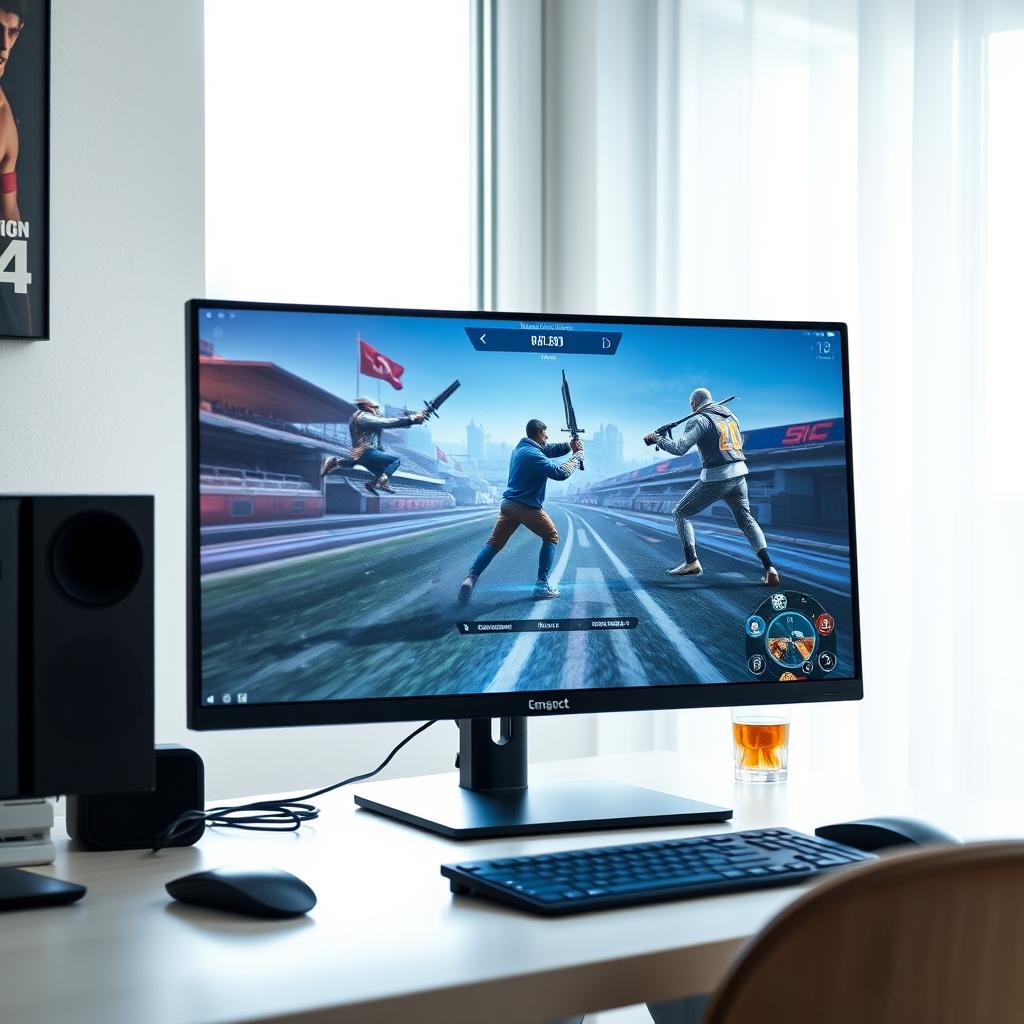
Playing mobile titles on a large desktop monitor with keyboard and mouse controls offers a clear tactical advantage. However, many users opening Google's official emulator on Windows notice choppy frame rates, delayed button inputs, or sluggish menus. When players jump into mobile games on desktop, a common question arises: is the pc google play laggy for everyone, or is it just a local configuration issue?
The short answer is that Google Play Games on PC can run exceptionally fast, but performance varies widely depending on hardware virtualization, graphics card assignment, and background Windows security features. Because Android software must run inside a translation layer on x86 Windows hardware, minor system misconfigurations often lead to heavy stuttering.
Here is a comprehensive breakdown of why Google Play Games on Windows experiences lag, how hardware virtualization impacts performance, and exact step-by-step methods to restore fluid 60 FPS gameplay.
Primary Causes of Lag in Google Play Games for Windows
If you are asking yourself is the pc google play laggy because of software bugs or hardware limitations, the answer usually lies in how Windows handles Android virtualization. Unlike native Windows software, Google Play Games relies on Google's custom hypervisor technology to execute ARM or Android-native code on x86 processors.
1. Disabled Hardware Virtualization (VT-x / AMD-V)
Hardware-assisted virtualization is the single most critical setting for running Android on PC. If CPU virtualization is disabled in your system BIOS or UEFI, the emulator falls back on slow software emulation, causing severe input delay and frame drops.
2. Integrated Graphics Defaulting
Laptops and desktop PCs equipped with dual graphics setups (an integrated Intel/AMD GPU alongside a discrete NVIDIA or AMD graphics card) frequently assign the integrated GPU to Google Play Games by default. Power-saving modes choke the emulator's rendering pipeline.
3. Hyper-V and Memory Integrity Conflicts
Windows features like Core Isolation (Memory Integrity) and hypervisor platform settings isolate system memory to prevent security breaches. While beneficial for enterprise security, these processes add processing overhead that causes erratic frame pacing in mobile games.
4. Background Resource Saturation
Google Play Games requires at least 8 GB of RAM and 4 physical CPU cores dedicated to smooth execution. Running web browsers with dozens of open tabs, video rendering software, or heavy background apps alongside the platform starves the hypervisor of necessary memory bandwidth.
Minimum Specs vs. Real-World Requirements
Determining whether is the pc google play laggy on your specific setup often comes down to comparing minimum system specs against real-world performance demands. While Google lists modest hardware requirements, running graphically demanding 3D titles requires considerably more headroom.
Running the platform on a traditional mechanical Hard Disk Drive (HDD) almost guarantees hitching during asset streaming. Upgrading storage pathways or verifying drive health via Microsoft's Windows Storage Documentation can help diagnose underlying drive performance bottlenecks.
How to Fix Lag and Boost FPS in Google Play Games on PC
If your games feel unresponsive or stuttery, work through these proven troubleshooting steps to optimize Windows and your graphics pipeline.
Step 1: Enable CPU Virtualization in BIOS/UEFI
To verify if virtualization is active, open Task Manager (Ctrl + Shift + Esc), click the Performance tab, and select CPU. Look for Virtualization: Enabled near the bottom right.
If it displays as Disabled:
- Restart your PC and enter the BIOS setup (typically by pressing
F2,Del, orF12during startup). - Navigate to Advanced CPU Configuration.
- Enable Intel VT-x / Virtualization Technology or AMD SVM Mode.
- Save changes and reboot into Windows.
Step 2: Force High-Performance GPU Settings
Many users who wondered is the pc google play laggy discovered that their system was defaulting to integrated graphics instead of a dedicated GPU. Force Windows to use your high-performance card:
- Press
Win + Ito open Settings, then select System > Display > Graphics. - Scroll down to the list of apps, locate Google Play Games, or browse for
crosvm.exe/bootstrapper.exewithin the Google Play installation folder. - Click on the app, select Options, choose High Performance, and save.
- Open your NVIDIA Control Panel or AMD Software and ensure Max Performance power mode is selected globally or specifically for the Google Play Games executable.
Step 3: Turn On Windows Hypervisor Platform
Google Play Games requires specific Windows virtualization features to operate efficiently without software overhead.
- Press the Windows Key, search for Turn Windows features on or off, and select it.
- Locate Windows Hypervisor Platform and Virtual Machine Platform.
- Check both boxes and click OK.
- Restart your computer when prompted.
Step 4: Toggle Memory Integrity (Core Isolation)
If you continue to experience severe frame drops, Memory Integrity might be causing CPU overhead on older hardware configurations.
- Open Windows Security from the Start Menu.
- Click Device Security, then select Core Isolation details.
- Toggle Memory Integrity to Off.
- Restart your system.
Note: Disabling Memory Integrity reduces isolated security protections. Weigh security priorities against gaming performance requirements on older systems.
Step 5: Adjust In-Game Graphic Settings and Frame Rates
In-game display scaling can overload virtualized GPU resources:
- Lower the in-game display resolution from 4K/1440p to native 1080p.
- Cap your frame rate to match your monitor's native refresh rate or limit it to 60 FPS within the game menu.
- Turn off Motion Blur, V-Sync, and high dynamic range shadows, which consume heavy shader bandwidth.
Google Play Games vs. Third-Party Android Emulators
When assessing if is the pc google play laggy compared to traditional third-party emulators, hardware pass-through capabilities play a critical role. Dedicated emulators like BlueStacks or LDPlayer offer deep customization menus allowing users to manually allocate CPU threads and RAM allocations.
However, Google Play Games utilizes direct low-level hypervisor integration designed for stability and safety. When properly configured with hardware virtualization and dedicated graphics drivers, Google Play Games provides significantly lower input latency and smoother frame pacing than third-party emulators. For official support resources regarding software updates, visit Google Play Support.
Summary Checklist for Eliminating Emulator Lag
- Enable Intel VT-x or AMD SVM in system BIOS.
- Install Google Play Games on a fast Solid State Drive (SSD).
- Force high-performance graphics via Windows Display Settings.
- Turn on Windows Hypervisor Platform in Optional Features.
- Keep display resolution at 1080p and cap frame rates to 60 FPS.
- Ensure dedicated GPU drivers are updated via NVIDIA GeForce Experience or AMD Adrenalin Software.
Related Articles
 Gaming
How to Check If Your Laptop Can Run Any Game (Step-by-Step)
September 3, 2026 Gaming
Is Xbox Game Pass Worth It? Pricing, Tiers & Value Guide
September 3, 2026 Gaming