
How to Play Fortnite on a Laptop: Native Install & Cloud Methods
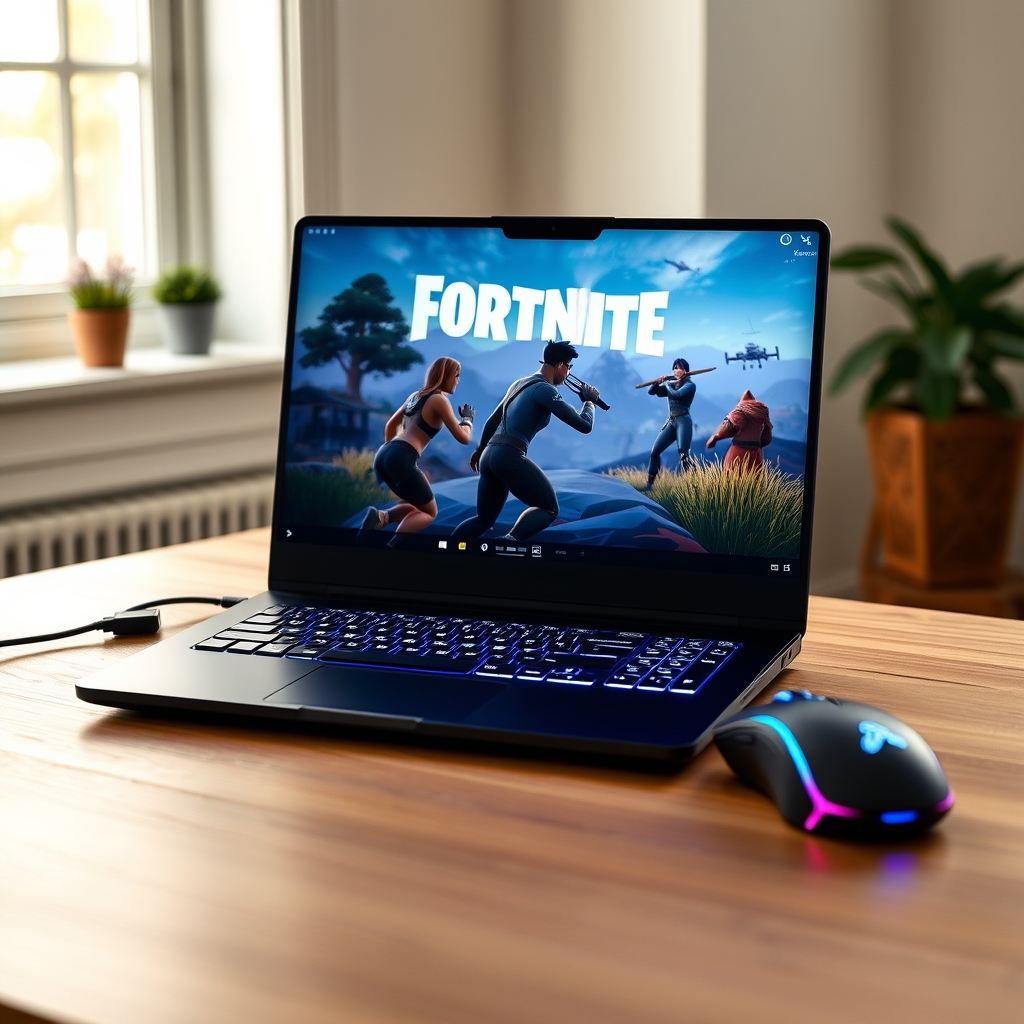
Fortnite remains one of the most played multiplayer games across the globe, attracting millions of players every day. Jumping into Victory Royales right from your desk or while traveling does not require an expensive gaming desktop. If you want to know how to play fortnite on a laptop, you are in luck because Epic Games has made the battle royale title accessible across almost every tier of modern hardware.
Running Fortnite smoothly on a portable computer requires understanding your hardware capabilities and tweaking settings to maximize performance. Some laptops can run the native installation effortlessly, while lightweight ultrabooks or older models benefit dramatically from cloud streaming services.
Minimum and Recommended System Requirements
Before downloading installation files, check if your laptop meets the hardware standards set by Epic Games. Updates continuously introduce graphics improvements, rendering upgrades, and complex physics, which increase system demands.
Minimum System Requirements
- Operating System: Windows 10/11 64-bit
- Processor: Intel Core i3-3225 or AMD equivalent
- Memory: 8 GB RAM
- Graphics Card: Intel HD 4000, Intel Iris Xe, or AMD Radeon Vega 8
- Storage: 30 GB available SSD space
Recommended System Requirements
- Operating System: Windows 11 64-bit
- Processor: Intel Core i5-12400, AMD Ryzen 5 5600X, or higher
- Memory: 16 GB RAM or higher
- Graphics Card: NVIDIA GeForce RTX 3050 / GTX 1660 Ti or AMD Radeon RX 6600
- Storage: NVMe SSD with 35+ GB free space
Understanding these baseline stats helps determine whether you should download the game directly or explore cloud streaming alternative solutions when learning how to play fortnite on a laptop.
Step-by-Step Guide on How to Play Fortnite on a Laptop
Installing Fortnite directly onto your machine delivers the lowest input latency and best control responsiveness. Follow these clear steps to complete the direct installation.
1. Download the Epic Games Launcher
Navigate to the official website and download the launcher installer. Run the setup file and follow the onscreen prompts to install the launcher on your drive.
2. Create or Sign In to Your Epic Account
Launch the application and sign in with your credentials. If you do not have an account yet, register a free account. You can link existing accounts from PlayStation, Xbox, or Nintendo Switch to sync cross-progression cosmetics and V-Bucks.
3. Search and Install Fortnite
Type "Fortnite" into the search bar inside the Epic Games Launcher store tab. Select Fortnite and click "Get" to add it to your library, then click "Install".
4. Enable Performance Options
During installation, click on "Options" underneath the install path. Uncheck "High-Resolution Textures" if your laptop relies on integrated graphics or limited storage. Disabling this option saves around 15 GB to 20 GB of disk space and boosts frame rates.
How to Play Fortnite on Low-End Laptops via Cloud Gaming
If your computer lacks a dedicated graphics card or struggles with limited storage space, cloud gaming offers a practical solution. Cloud streaming completely redefines how to play fortnite on a laptop without dedicated graphics cards, as long as you have a stable high-speed internet connection.
Xbox Cloud Gaming (Free Method)
Microsoft allows players to stream Fortnite without requiring an active paid subscription.
- Open Microsoft Edge or Google Chrome on your laptop browser.
- Navigate to the Xbox Cloud Gaming portal.
- Sign in with your Microsoft account.
- Connect a compatible game controller or use keyboard and mouse controls.
- Click "Play" to launch the game instantly in your browser tab.
NVIDIA GeForce NOW
For higher frame rates and lower stream latency, NVIDIA GeForce NOW delivers excellent performance. It connects directly to your Epic Games account and renders the game on high-end cloud rigs.
- Download the GeForce NOW client or open its web browser platform.
- Link your Epic Games account within the application settings.
- Search for Fortnite and select your preferred streaming tier.
- Launch the game directly from the app.
In-Game Settings Optimization for Higher FPS
Maximizing frames per second (FPS) gives you a distinct edge during fast-paced building battles. Tweaking display parameters is crucial when figuring out how to play fortnite on a laptop with smooth frame rates and minimal input lag.
Rendering Mode Selection
Navigate to the Video Settings menu inside Fortnite. Under "Rendering Mode", select Performance Mode (Lower Graphical Fidelity). This setting reduces CPU and GPU strain by rendering simpler textures and lighting, allowing budget laptops to maintain 60 FPS or higher.
Essential Graphics Adjustments
- Display Resolution: Match your laptop's native resolution (typically 1920×1080). Dropping to 1600×900 provides an immediate FPS increase on older hardware.
- Frame Rate Limit: Cap your frame rate to match your monitor's display refresh rate (e.g., 60 Hz, 120 Hz, or 144 Hz) to prevent stuttering and thermal throttling.
- 3D Resolution: Set between 80% and 100%. Reducing this slider lowers rendering load without heavily sacrificing menu clarity.
- Shadows: Turn Off. Dynamic shadows consume considerable GPU processing power.
- Anti-Aliasing & Super Resolution: Turn Off or set to TSR Low.
- Textures: Low or Medium.
- View Distance: Medium or Far (helps spot distant opponents without severe rendering drops).
Essential Laptop Optimization Tips
Laptops face thermal and power management constraints that desktop PCs rarely encounter. Implementing these simple tweaks ensures stable gaming sessions.
Always Keep the Laptop Plugged In
Laptops automatically throttle performance on battery power to conserve energy. Connecting your power adapter allows your processor and graphics card to run at full power.
Select High Performance Power Mode
Open Windows Settings, navigate to System > Power & Battery, and set Power Mode to "Best Performance". This prevents Windows from limiting your CPU speeds while gaming.
Maintain Proper Airflow and Cooling
Overheating forces hardware to throttle clock speeds to prevent physical damage. Play on a flat, hard surface like a wooden desk. Elevating the rear edge of the laptop or using an active cooling pad improves intake airflow significantly.
Close Background Programs
Browsers, video streaming platforms, and background downloads eat up memory resources. Check your system tray and task manager to close unnecessary apps before starting a session.
Comparison: Native Installation vs. Cloud Gaming
Frequently Asked Questions
Can I play Fortnite on a laptop without a graphics card?
Yes, you can play using Performance Mode on modern integrated graphics like Intel Iris Xe or AMD Radeon Vega. Alternatively, cloud streaming services allow you to stream the game without needing dedicated graphics hardware.
Why is Fortnite laggy on my laptop?
Lag occurs due to low frames per second (hardware throttling or high graphics settings) or network latency (ping). Ensure your laptop is plugged into power, close background software, switch to Performance Mode, and use a wired Ethernet connection when possible.
How much storage space does Fortnite take on a laptop?
Fortnite requires roughly 30 GB to 35 GB of storage space. Unchecking high-resolution textures during installation saves substantial disk space.
Can I use a controller to play Fortnite on a laptop?
Yes, Fortnite natively supports Xbox controllers, PlayStation DualSense, and third-party gamepad controllers connected via USB or Bluetooth.
Final Thoughts
Whether you choose a direct download or opt for convenient cloud streaming solutions, enjoying high-speed battle royale matches on a portable PC is straightforward. Master these hardware tweaks and settings to understand how to play fortnite on a laptop with competitive frame rates regardless of your setup.
Related Articles
 Gaming
How to Check If Your Laptop Can Run Any Game (Step-by-Step)
September 3, 2026 Gaming
Is Google Play Games on PC Laggy? Causes and Quick Fixes
September 3, 2026 Gaming