
How to Turn On Performance Mode Fortnite: Complete 2026 Setup Guide
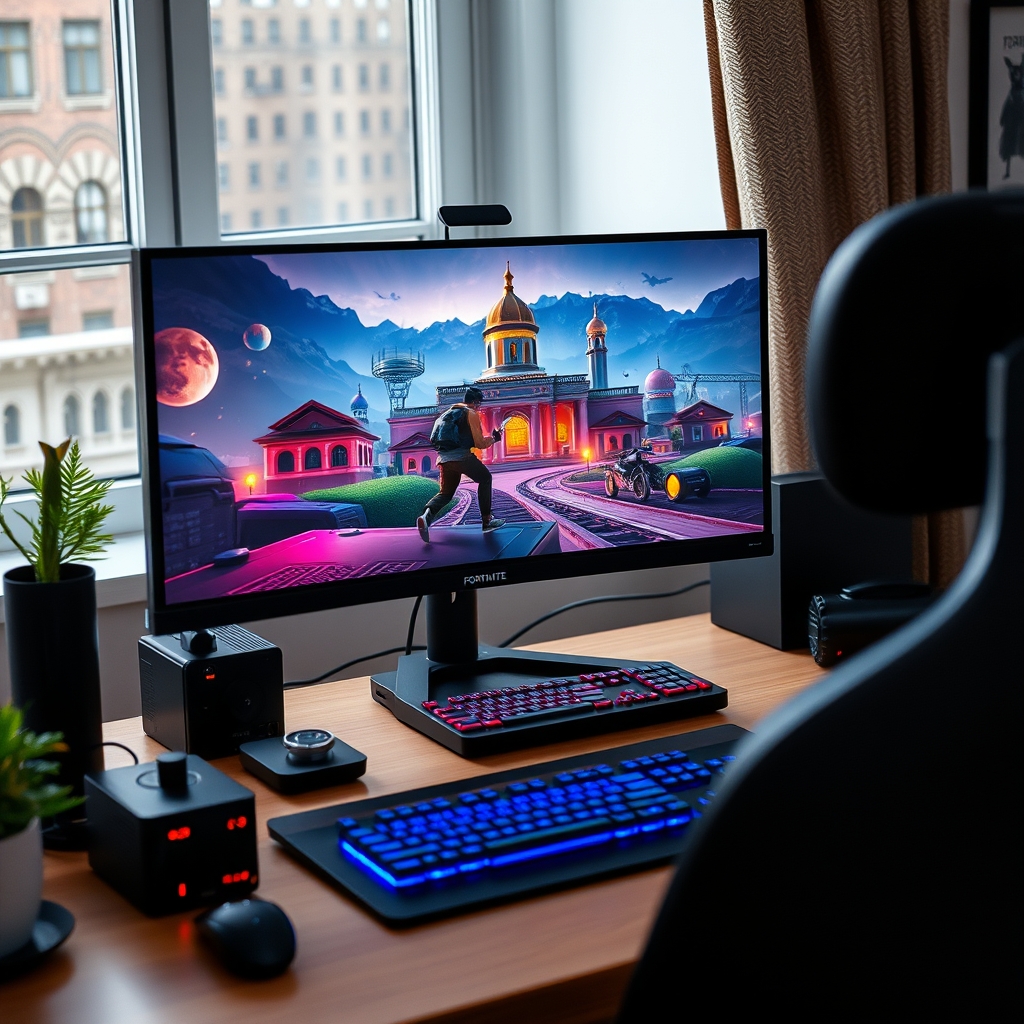
Competitive Fortnite demands rapid reactions, precise building, and silky-smooth frame rates. If you are trying to squeeze every frame per second out of your gaming rig, learning how to turn on performance mode fortnite is one of the single most effective changes you can make.
Performance Mode reduces visual load on your graphics processor while freeing up critical system memory. The result is higher average frame rates, significantly reduced input latency, and smoother gameplay during intense end-game rotations.
This guide provides the exact steps to enable Performance Mode on PC, along with optimal in-game settings to maximize your competitive edge in 2026.
Step-by-Step Guide: How to Turn On Performance Mode Fortnite
Enabling this rendering feature takes less than two minutes. Follow these direct steps inside the main game menu:
- Launch Fortnite on your PC and open the main lobby menu.
- Click your avatar icon in the top-right corner and select the Settings gear icon.
- Navigate to the Video tab (represented by a monitor icon at the top).
- Scroll down to the Display section and locate Rendering Mode.
- Click the arrow key until you select Performance – Lower Graphical Fidelity.
- Click Apply at the bottom right of the screen.
- Restart Fortnite for the rendering engine change to take full effect.
Restarting the game is mandatory. Fortnite must reload its engine rendering pipeline to switch off heavy shader effects and initialize the lightweight renderer.
What Performance Mode Actually Does Under the Hood
When you learn how to turn on performance mode fortnite, Epic Games switches the core rendering engine from DirectX 11 or 12 to a streamlined framework built for speed. This lightweight renderer strips away demanding graphical features like Ray Tracing, Lumen global illumination, complex shadow maps, and particle physics.
According to official documentation on Epic Games Support, Performance Mode is explicitly designed to support players with mid-range or older hardware while offering competitive players the lowest possible input delay.
By offloading heavy shading tasks, your GPU spends less time processing each frame. This allows your CPU to deliver frame updates to your monitor faster, directly decreasing input latency.
Optimal Graphics Settings After Enabling Performance Mode
Understanding how to turn on performance mode fortnite is only the first step; configuring the secondary sliders determines your actual visual clarity and frame stability. Once you restart the game, return to the Video Settings tab and set the following parameters:
1. Meshes (Low vs. High)
- Low Meshes: Reduces building structure visuals to a simple, translucent design often called "mobile builds." This option provides the absolute maximum frame rate and lowest memory usage.
- High Meshes: Retains realistic transparent build animations similar to DirectX 11. Choose High Meshes if you prefer better transparency visual cues when fighting inside enemy structures.
2. View Distance
- Set to Medium or Far. View distance in Fortnite only affects environmental structures like trees and buildings, not enemy players. Players render at maximum distance regardless of this setting, so keeping it on Medium keeps your frame rate high without sacrificing tactical info.
3. Textures
- Set to Low. High-resolution textures consume unnecessary video memory (VRAM). Low textures ensure smooth frame delivery, especially during crowded end-game moving zones.
4. 3D Resolution
- Set to 100% if your GPU can handle your native display resolution. If you experience performance dips below your monitor's refresh rate, scale this slider down to 80%-90% for an immediate boost in smoothness.
How to Fix Performance Mode Resetting or Crashing
If the setting resets every time you launch the game, following the standard instructions for how to turn on performance mode fortnite might fail due to read-only configuration files. Here is how to fix this common glitch:
Fixing Read-Only Settings Files
- Press
Windows Key + Rto open the Run box. - Type
%localappdata%and press Enter. - Open the
FortniteGamefolder, then navigate toSaved>Config>WindowsClient. - Right-click
GameUserSettings.iniand select Properties. - Uncheck the Read-only box if it is checked.
- Click Apply and then OK.
- Re-launch Fortnite, set Performance Mode, apply, and restart.
Clearing Pre-Compiled Shaders
If Fortnite crashes after switching to Performance Mode, your GPU driver may be attempting to load old shader caches. Update your graphics drivers directly from official sources like Nvidia Drivers or AMD support, which flushes old cache files automatically.
Is Performance Mode Available on Consoles?
While console players search for how to turn on performance mode fortnite, this specific rendering toggle remains exclusive to PC players on Windows. PlayStation 5, Xbox Series X, and Nintendo Switch do not feature the Performance Mode toggle in their menus.
Instead, PS5 and Xbox Series X offer a 120 FPS Mode in the video options. This mode automatically optimizes internal resolution and visual fidelity to maintain a stable 120 frames per second on supported 120Hz or 240Hz monitors.
Expert FPS Optimization Tips for 2026
Beyond in-game settings, a few system-level adjustments ensure you get every drop of speed out of your setup:
- Disable High-Resolution Textures: Open the Epic Games Launcher, click the three dots under Fortnite in your Library, select Options, and uncheck High-Resolution Textures. This saves over 15GB of disk space and stops background texture streaming.
- Enable Disable Fullscreen Optimizations: Right-click the Fortnite executable file, go to Properties > Compatibility, and check Disable fullscreen optimizations to eliminate Windows desktop compositor latency.
- Use Exclusive Fullscreen: Always set your Window Mode to Fullscreen in-game to give Fortnite priority access to hardware resources.
- Disable Replay Recording: If you do not analyze your matches, turn off Replay Recording in Game Settings to save CPU cycles.
Setting up Performance Mode correctly transforms Fortnite into a highly responsive competitive game. By applying these settings and optimizations, you eliminate micro-stutters and input lag, allowing your hardware to work for your playstyle rather than against it.
Related Articles
 Gaming
How to Check If Your Laptop Can Run Any Game (Step-by-Step)
September 3, 2026 Gaming
Is Google Play Games on PC Laggy? Causes and Quick Fixes
September 3, 2026 Gaming